Creating & Updating an Ocean Export FCL Order
- Before you review the process of creating ocean order we recommend understanding the workflow of how ocean forwarding works in Shipmnts.
- Click here to review Overview of Ocean Export Forwarding.
- The basic flow shared in this article is as follows
- Creating an Order
- Linking Booking (See section Booking Management)
- Linking Container
- Converting an Order to a Job
- [Optional] - Update Additional details on order like transhipment hop and etc.
Creating Ocean Export FCL Order
Creating an Ocean Export FCL Order from Won Inquiry - Recommended
1. Navigate to the Sales section to access sales-related data and inquiries.

2. Select Active Inquiries to focus on ongoing sales inquiries.

3. Switch to the Won Inquiries tab to view inquiries that have been successfully closed.

4. Click the more options button beside a won inquiry to get to order creation option. Choose Create Order to start generating an order from the selected won inquiry.

5. You will notice most of the basic and charge details will be pre-filled and get carried forward from the won inquiry.

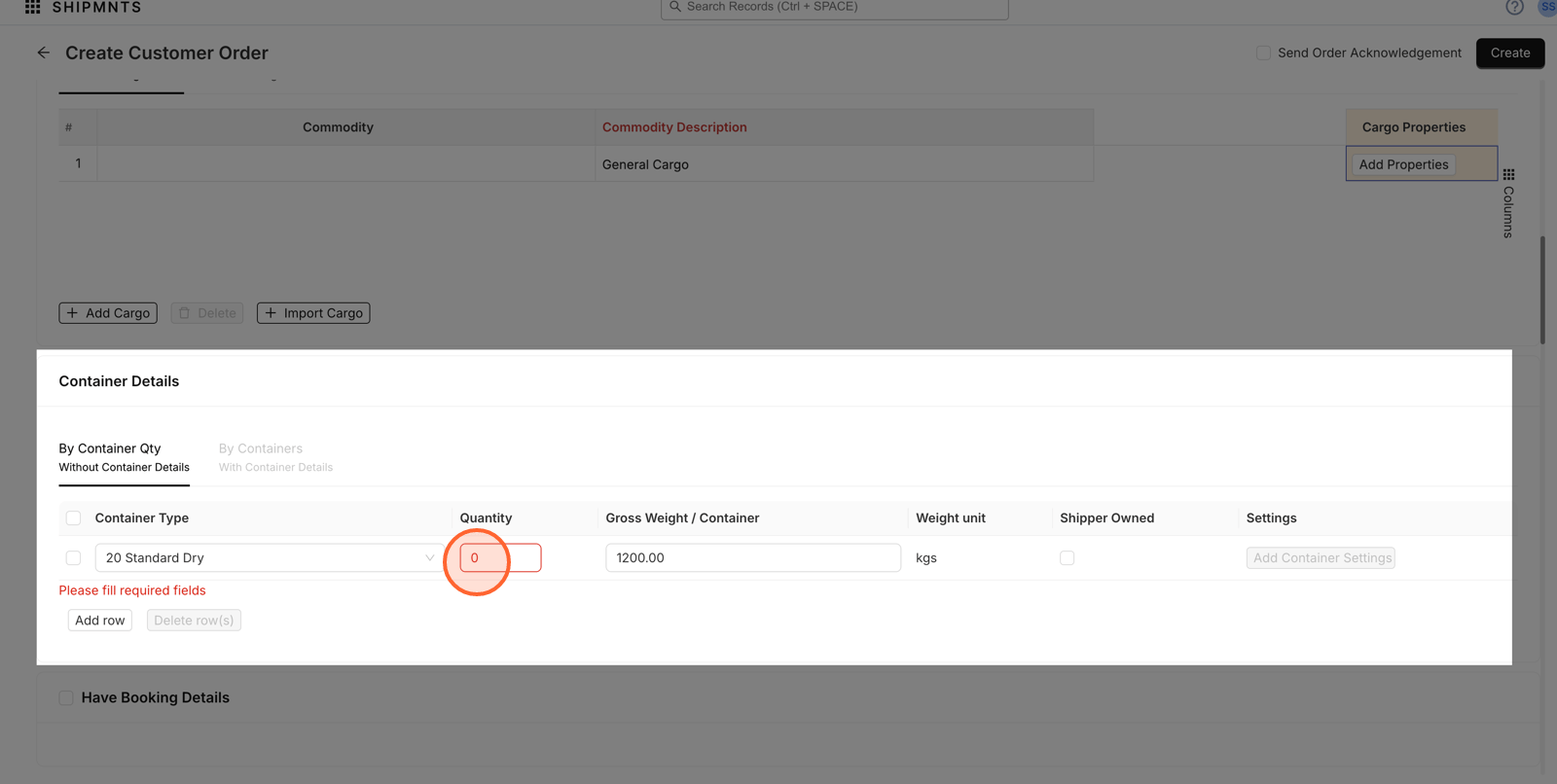
6. Enter the number of containers required for your shipment.

7.If you would like to update more details on the order you may (we will see how to do that in details) else you can save the details at this stage.
If you would like to update more details on the order you may (we will see how to do that in details) else you can save the details at this stage. eg here it's suggesting while you would like to save the order would you also like to send a pre-formatted acknowledgement message of the order. Let's keep this checked.

8. Click Create to Save

9. This drawer opened up because we selected the 'Send Acknowlegement' option in last step. Click Send Notifications to alert relevant parties about the confirmed order.

10. Your order has now been created

Creating a stand alone Ocean Export FCL Order (when your sales team is not using Shipmnts Sales Cloud)
1.

2. Navigate to the Ocean Export Customer Orders section to manage or create new export orders.

3. Click the Create Order button to begin entering details for a new ocean export customer order.

4. Open the Business Vertical menu to specify the category for the customer order.

5. Select Ocean Export Forwarding to define the order's business vertical.

6. Choose the appropriate customer, in this example we are using Vipra Ltd, for the new order.

7

8. [OPTIONAL HERE] If you have a pre-defined quotation for this customer, select a Quotation Reference to associate pre-agreed pricing or terms with this order.

9.

10.

11. [OPTIONAL HERE] Open the Incoterms dropdown to choose shipping terms for the transaction.

12. Select the appropriate Incoterm, such as CIF, to clarify shipping responsibilities.

13.

14. Fill in the commodity name under Cargo Details to specify what is being shipped.

15.

16. Select the specific commodity, like Scrap metal, from the dropdown list.

17.

18. Switch to the Without Container Details tab if container information is not ready to be detailed.

19. Input container type details or add a new container row as needed for accurate shipment records.

20.

21.

22. Under routing details. Choose the Port of Loading, such as Nhava Sheva, where the vessel will be loaded. We will see how to upload additional optional details in another lesson.

23.

24. Search or enter the Port Of Discharge to specify where the shipment will be delivered.

25. Select the destination port, such as Jebel Ali, for accurate routing.

26.

27. Click Send Order Acknowledgement to notify parties that the customer order has been received.

28. Finalize the customer order by clicking the Create button.

29. Send notifications to inform all stakeholders of the new order and its status.

Converting Order to Job post receipt of booking confirmation from Shipping Line
Converting Order to Job post receipt of booking confirmation from Shipping Line
 Before you proceed to converting an Order to Job you must ensure following things
 1. Your Shipping line Booking is linked to your order. See the next Section on Booking Management to understand how to link booking
2. The container details are added to the order
Add Container On an Order
1. Select Add Containers Details to provide or update relevant container information for this shipment.

2. Click the Container Number field to enter the unique identifier for your container.

3. Type the container number for easy future tracking and reference.

4. Click Submit to save and confirm the entered container information.

5. Select Send Pickup Confirmation to automatically notify parties upon saving container details.

[Optional] Send SI reminder to Customer before Job Creation
1. Click the more options button to reveal additional actions for this shipment.

2. Select 'SI Reminder Sent To Customer' to start the process of sending a Shipping Instruction reminder.

3. Choose the event date for your reminder by clicking the date field.

4. Select the specific date that the reminder should be sent.

5. Click 'OK' to confirm your selected date and time.

6. Enable 'Send Notification' to notify the customer about this shipment update.

7. Submit your reminder details to save and proceed.

8.

9. Select the correct customer contact to ensure the reminder reaches the intended recipient.

10. Click 'Send' in the email panel to deliver the SI reminder to your customer.

Convert to Ocean Job from Ocean Order
1. Open shipment actions for your chosen booking by clicking the more options button.

2. Choose Direct from the Create Shipment submenu to begin setting up a direct shipment for this booking.

3. Select the specific container you wish to include in this direct shipment.

4. Click Create Shipment to finalize and initiate the direct shipment process.

Booking Management in Ocean Customer Orders
Create New Shipping Line Booking and Allocate to an Order


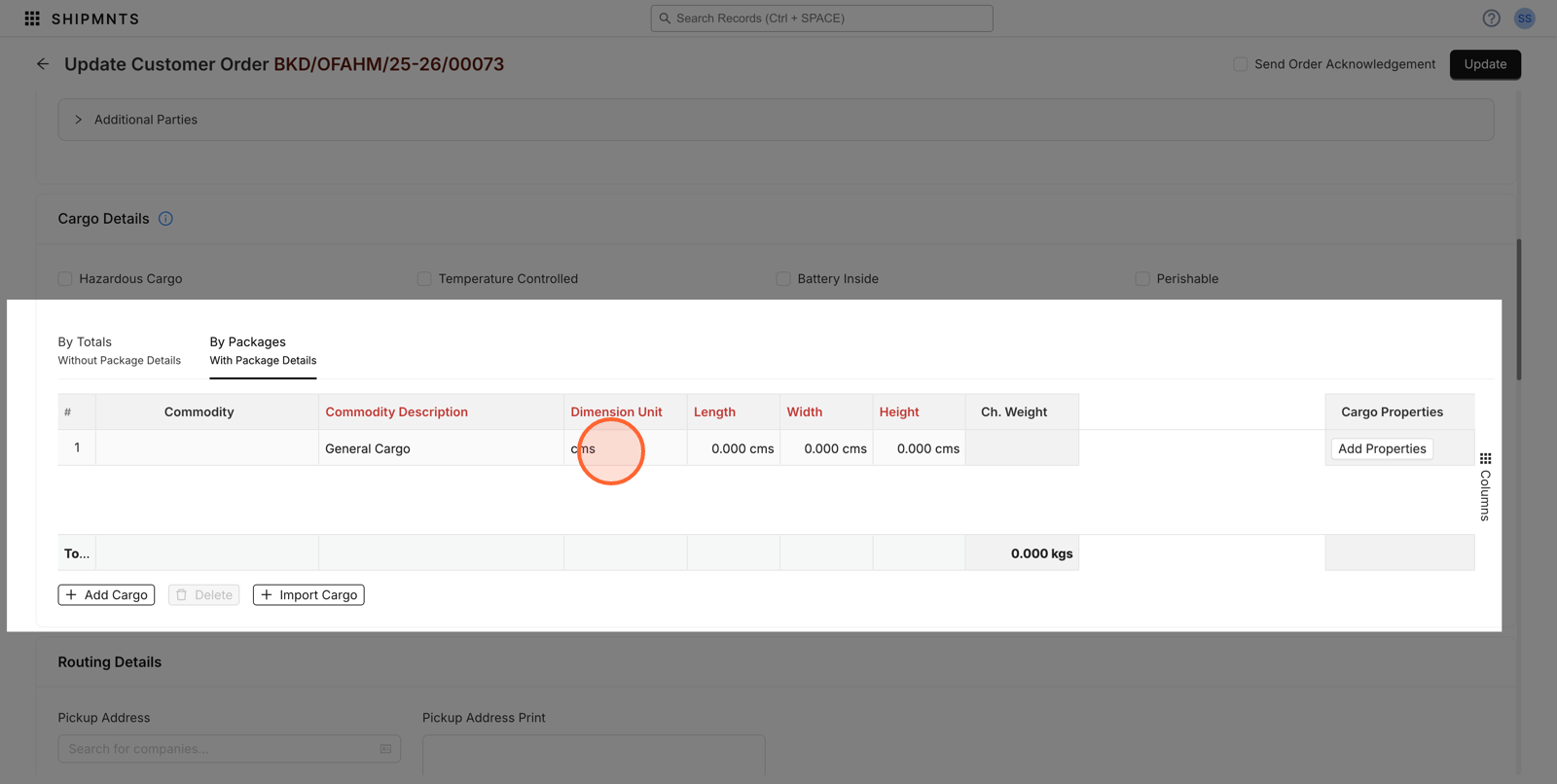
Updating FCL Order Details
Updating Shipper, Consignee, Origin/ Destination Agent & Notify parties






Related Articles
Creating & Updating an Ocean Export LCL Order
Before you review the process of creating ocean order we recommend understanding the workflow of how ocean forwarding works in Shipmnts. Click here to review Overview of Ocean Export Forwarding. The basic flow shared in this article is as follows ...Directly Creating an Ocean Export Shipment (Job) - Without Order
Important! - The process of directly creating a Shipment or Job is recommended in case you already have confirmed booking from Shipping line. - We recommend you review the overall Ocean Export workflow before starting Shipment Creation to ensure you ...Getting Started with Ocean Export Forwarding
Workflow of Ocean Export Forwarding Creating Ocean Export Order - Optional When to Create an Order first? If there is some time to receive the shipping line booking, to ensure you are not losing a track of the pending confirmed order from customer ...Getting Started with Ocean Import Forwarding
Workflow of Ocean Import Forwarding Creating Ocean Import Order - Optional When to Create an Order first? Whenever along with the destination agent activities you are also handling origin freight booking as well, starting your flow from Order ...Creating Stand Alone Ocean Export FCL Order
<br>