Directly Creating an Ocean Export Shipment (Job) - Without Order
Important!
- The process of directly creating a Shipment or Job is recommended in case you already have confirmed booking from Shipping line.
- We recommend you review the overall Ocean Export workflow before starting Shipment Creation to ensure you are choosing right starting point for your workflow
- The process of directly creating a Shipment or Job is recommended in case you already have confirmed booking from Shipping line.
- We recommend you review the overall Ocean Export workflow before starting Shipment Creation to ensure you are choosing right starting point for your workflow
Directly Create an Ocean Export Shipment (FCL & LCL) Via Won Inquiry
1. Open Navigation Menu

2. Click On Sales

3. Go to Active Inquiries to get to all inquires

4.

5. Switch to Won Inquiries to view all successfully closed sales inquiries.

6. Open the Business Vertical filter to narrow inquiries by business type.

7. Use the more options button in the Actions column to access additional inquiry actions besides the inquiry which you want to convert into job

8. Choose from the correct shipment type, see article for more details on different shipment typers. Here we are choosing Direct under Create Shipment as an example.
- Direct - Select this category if you have a direct BL with Shipping line. i.e you are not issuing HBL
- Back to Back - Select this category if you are issuing your own HBL as well against shipping line BL
- House - Select this category for creating individual consol house jobs, which can be later combined into a consolidated Shipment

9.

10.Fill up the mandatory Party Details.
Check this box to automatically fill in the shipper's details with the customer's information.
Fill up the mandatory Party Details.
Check this box to automatically fill in the shipper's details with the customer's information.

11.

12. Enter the number of containers needed, and avoid negative values for accurate shipment data.

13.

14. Input or edit the unique booking number for this shipment.
Important!
Note that this is an FCL Job therefore Shipping line booking details will be mandatory, incase of LCL the booking deatils is optional

15. Choose the booking date to set when the shipment is scheduled to be booked.

16. Select the preferred booking date from the calendar popup.

17. Open this dropdown to choose where the empty container will be picked up.

18.

19. Select the terminal for empty container pickup to ensure correct shipment logistics.

20.

21. Click this button to choose a specific voyage schedule for your shipment.

22. Select the desired voyage schedule from the available options in the table.

23. Confirm your voyage selection by clicking Select and Apply Schedule.

24.

25. Note this, considering you are creating this Shipment from an inquiry the estimated charges are also carried forward eliminating duplicate entry

26.

27. Tick this box to send a booking confirmation upon creating the shipment.

28. Click Create to finalize and submit your shipment booking.

29. Enable this option to send the booking confirmation email notification to stakeholders.

30. Send the booking confirmation by clicking here to notify your selected recipients.

31. Your Shipment has been created

Directly Create a Stand Alone Ocean Export Shipment (FCL & LCL)
1. Click the Create Shipment button to start a new ocean export shipment entry.

2. Navigate to the Ocean section in the sidebar to manage ocean-related shipments.

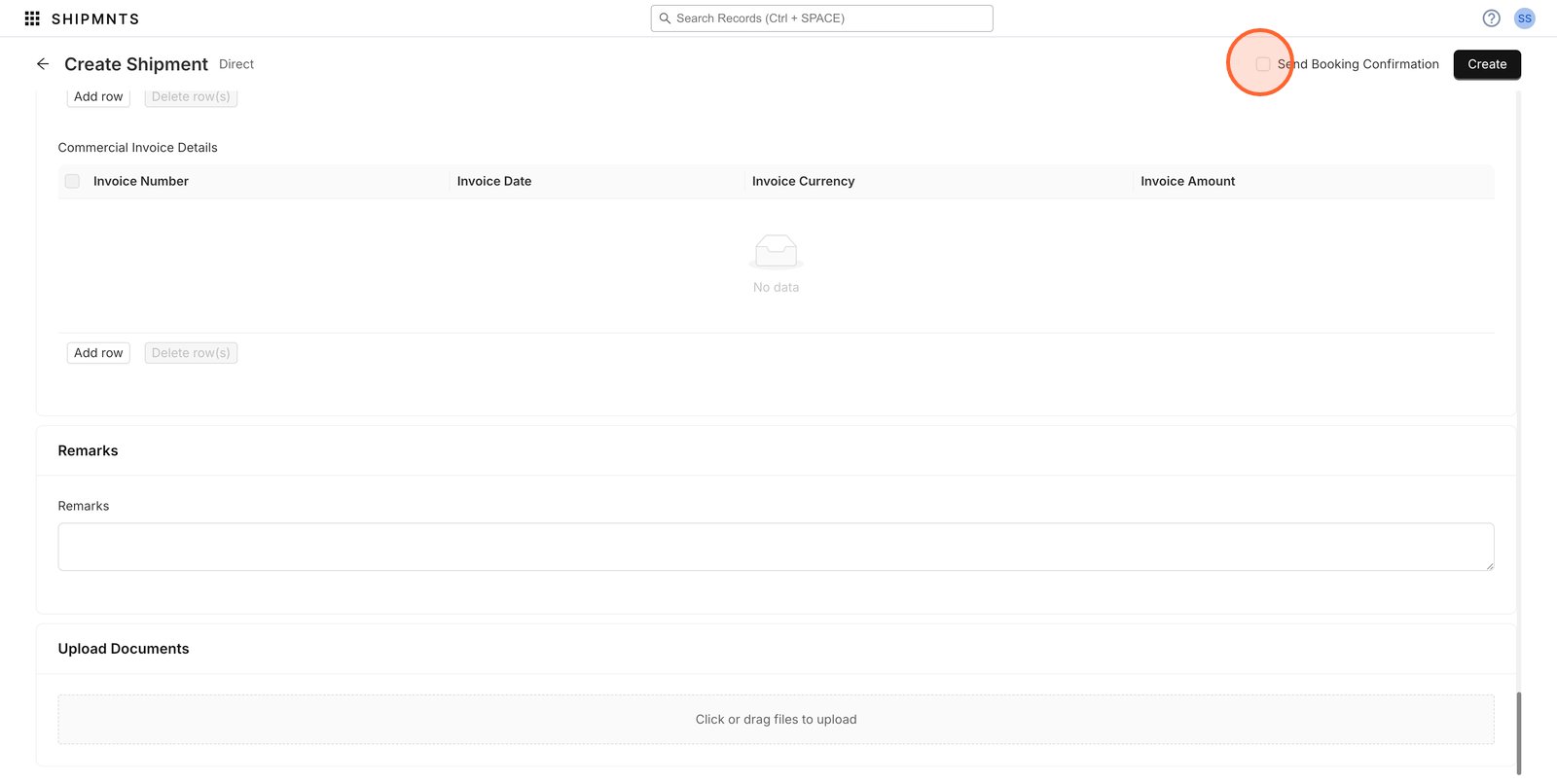
3.

4. Select Ocean Export > Shipment in the sidebar to work with export shipments.

5.

6. In the dropdown, select Direct to begin creating a direct shipment.
- Direct - Select this category if you have a direct BL with Shipping line. i.e you are not issuing HBL
- Back to Back - Select this category if you are issuing your own HBL as well against shipping line BL
- House - Select this category for creating individual consol house jobs, which can be later combined into a consolidated Shipment

7. Choose Ocean Export Forwarding as the business vertical for this shipment.

8. Select the appropriate branch for processing this shipment.
If you would like to log a business received through nomination or overseas agent this is the option you may change, for booked through business this will also allow you to record the agent name

9. Search for and select the customer associated with this shipment.

10.

11. Click the desired customer in the dropdown to link them to the shipment.

12. Review the customer's approval status if needed for compliance.

13. Close the Credit Information pop-up after checking credit details.

14.

15. Open the Incoterms dropdown to specify the shipping terms.

16. Select CIF Cost Insurance and Freight to set the Incoterms for this shipment.

17.

18. Check Same As Customer in Party Details if the shipper matches the customer details.

19.

20. Enter the type of commodity being shipped in the Commodity Description field.

21. Fill in the Cargo Details for each commodity in your shipment.

22.

23. Choose the Container Type to specify equipment for the shipment.

24. For example, select 20 Standard Dry if that's the container required.

25.

26. Search for and select the shipping carrier for this booking.

27.

28. For example we are picking MSC EXPEDITOR INC. as the carrier for your shipment.

29. Enter the booking number provided by the carrier for this shipment.
Important!
Note that this is an FCL Job therefore Shipping line booking details will be mandatory, incase of LCL the booking details is optional

30.

31. Set the Empty Pickup Location where the empty container will be collected.

32.

33. Choose the Port Of Loading to define where your cargo will be shipped from.

34.

35. Select Mundra as the Port Of Loading for this shipment.

36.

37. Open the Vessel dropdown to select which ship will transport your cargo.

38. Use the vessel search to quickly find the ship for this route.

39.

40.

41. Click Select Voyage Schedule to view available sailing options.

42. You can pick any available schedule row, such as the fifth entry if that's your preference.

43. Click Select and Apply Schedule to save your sailing choice for the new shipment.

44.

45 . Expand the Shipment Cutoff section to enter key milestone dates for export documentation and loading.

46.

47. You may also set BL Type as per the kind of BL

48. Add a new charge if your shipment requires additional fees or surcharges.

49. Enable Send Booking Confirmation to notify necessary parties upon creation.
50. Click Create to save the Shipment.

51. Your Shipment is created

Related Articles
Creating & Updating an Ocean Export FCL Order
Before you review the process of creating ocean order we recommend understanding the workflow of how ocean forwarding works in Shipmnts. Click here to review Overview of Ocean Export Forwarding. The basic flow shared in this article is as follows ...Creating & Updating an Ocean Export LCL Order
Before you review the process of creating ocean order we recommend understanding the workflow of how ocean forwarding works in Shipmnts. Click here to review Overview of Ocean Export Forwarding. The basic flow shared in this article is as follows ...Getting Started with Ocean Export Forwarding
Workflow of Ocean Export Forwarding Creating Ocean Export Order - Optional When to Create an Order first? If there is some time to receive the shipping line booking, to ensure you are not losing a track of the pending confirmed order from customer ...Getting Started with Ocean Import Forwarding
Workflow of Ocean Import Forwarding Creating Ocean Import Order - Optional When to Create an Order first? Whenever along with the destination agent activities you are also handling origin freight booking as well, starting your flow from Order ...Overview of Ocean Forwarding in Shipmnts.com
Ocean Forwarding on Shipmnts.com: Overview When you’re managing ocean freight forwarding in Shipmnts, the platform gives you everything you need to run exports, imports, documentation, compliance, and visibility from one place. Think of it as your ...